
Why video frames differ from still photos in photogrammetry
The intent behind “create a 3D model from video” is practical: many roofs, facades, rooms and assets already exist as phone, camera or drone video. Voxelia is relevant here because the service is not drone capture, but technical processing of supplied imagery into models, [point clouds](/ratgeber/e57-las-rcp-punktwolke-cad-bim), orthophotos, CAD, BIM or viewers.
[Photogrammetry](/ratgeber/photogrammetrie-leitfaden-2026) does not use video as a single continuous object. Reconstruction needs individual overlapping perspectives. COLMAP describes this core flow as camera pose estimation and sparse reconstruction followed by dense Multi-View Stereo. Agisoft Metashape 2.3 can import video, but it extracts frames and adds those images to the active chunk.
So the real question is not whether software can open a video file. The question is whether the extracted frames are sharp, stable, overlapping and accurate enough for the intended delivery.
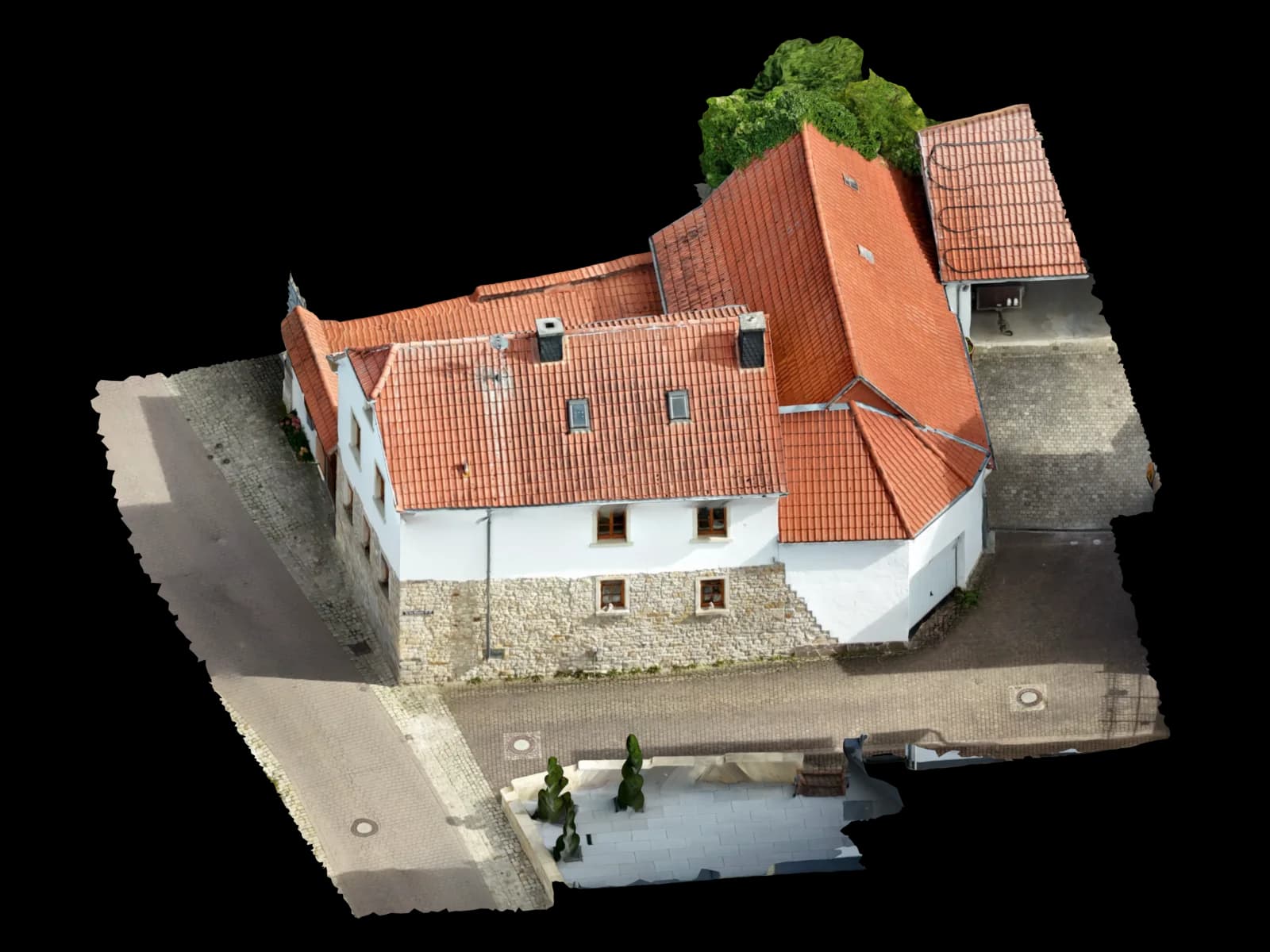
When video works as a source for a 3D model
Video is useful when it contains many stable individual viewpoints. Apple recommends high-resolution, well-lit photos from many angles and substantial overlap, with 70 percent overlap as an ideal neighboring-image target and less than 50 percent as a failure risk. The same logic applies to frames extracted from video.
Good candidates include slow walkthroughs around static objects, steady facade passes, interior videos with clear edges, and drone videos with smooth motion and little vibration. Helpful conditions are texture, consistent exposure, limited glare and no hard shadow jumps.
| System / dataset | Suitability | Best for | Practical note |
|---|---|---|---|
| Steady phone video | Good for visual meshes and simple scale models | Objects, facade details, interiors, documentation | Frames must be sharp; locked focus and exposure help. Scale needs a reference. |
| Drone video of a roof or building | Conditional to good | Viewer, simple roof geometry, context | Risk rises with fast motion, low altitude, compression and missing oblique views. |
| Planned still photos | Very good | CAD, BIM, PV planning, orthophotos, point clouds | Still images usually provide better quality, metadata and controlled geometry. |
| Archive video | Review required | Visualization, rough reconstruction, damage context | Blur, zoom, cuts and codec artifacts limit technical use. |
Where video frames become risky for CAD, BIM and PV planning
Video can create the illusion of dense data. A 30 fps clip may contain many almost identical frames with little geometric baseline. Redundant frames add processing load without adding useful reconstruction strength.
CAD, BIM and PV planning are less forgiving than a viewer. Roof edges must remain straight, facade planes need clean projection and scale must be controllable. Motion blur, [rolling shutter](/ratgeber/rolling-shutter-vs-global-shutter-photogrammetrie), exposure jumps, missing metadata and weak parallax matter more here.
| Risk scenario | Why it matters | Typical symptom | Countermeasure |
|---|---|---|---|
| Motion blur | Blur weakens tie points | Soft texture, gaps, local deformation | Keep only sharp frames and request extra photos if needed |
| Heavy video compression | Codec artifacts damage fine details | Noisy point cloud and weak edges | Use the original video, not messenger exports |
| Too little viewpoint change | Many similar frames do not improve geometry | Flat or unstable reconstruction | Select frames farther apart and add missing angles |
| Focus and exposure jumps | Matching becomes less stable | Split components and brightness jumps | Remove unstable sequences |
Frame selection: fewer strong frames beat thousands of weak ones
Agisoft documents frame-step choices for video import. The automatic Small setting uses about 3 percent image-width shift, Medium about 7 percent and Large about 14 percent. Frames should therefore be chosen for useful viewpoint change, not maximum count.
FFmpeg provides a reproducible toolchain for frame extraction and frame-rate control. In practice, the key is preserving the original video, using a controlled extraction path and avoiding blind processing of every frame.
How Voxelia reviews existing video before 3D processing
The workflow is designed for material you already have. We first define the realistic output class, then decide whether the video can support it.
Define the output
Viewer mesh, point cloud, orthophoto, CAD, BIM-adjacent model or PV planning data all require different confidence levels.
Review original video and metadata
Original files are preferred. Messenger and social exports are riskier for technical outputs.
Extract and curate frames
Duplicate, blurred, overexposed and unstable frames are removed before reconstruction.
Reconstruct and check quality
Camera poses, tie points, gaps, edge stability and scale potential are reviewed.
Deliver the fitting output
Outputs may include mesh, viewer, point cloud, orthophoto, DXF/DWG or an IFC-adjacent deliverable.
Realistic outputs from video frames
Good video frames can produce convincing 3D viewers, meshes, textures and rough existing-condition models. That can be useful for documentation, alignment and visual context.
Orthophotos, orthoplanes, CAD tracing and BIM deliverables demand more. Scale bars, reference dimensions, GCPs or checkpoints can turn a visual model into planning data.
Technical source basis
Agisoft Metashape Professional 2.3 documents video import as frame extraction into an image folder, with extracted images added to the active chunk. Apple Object Capture defines practical image quality and overlap expectations for photo-based reconstruction.
COLMAP provides the Structure-from-Motion and Multi-View Stereo basis for unordered image collections. FFmpeg provides the reproducible tooling for extraction and frame-rate control.