
Why a GeoTIFF orthophoto is more than a good-looking aerial image
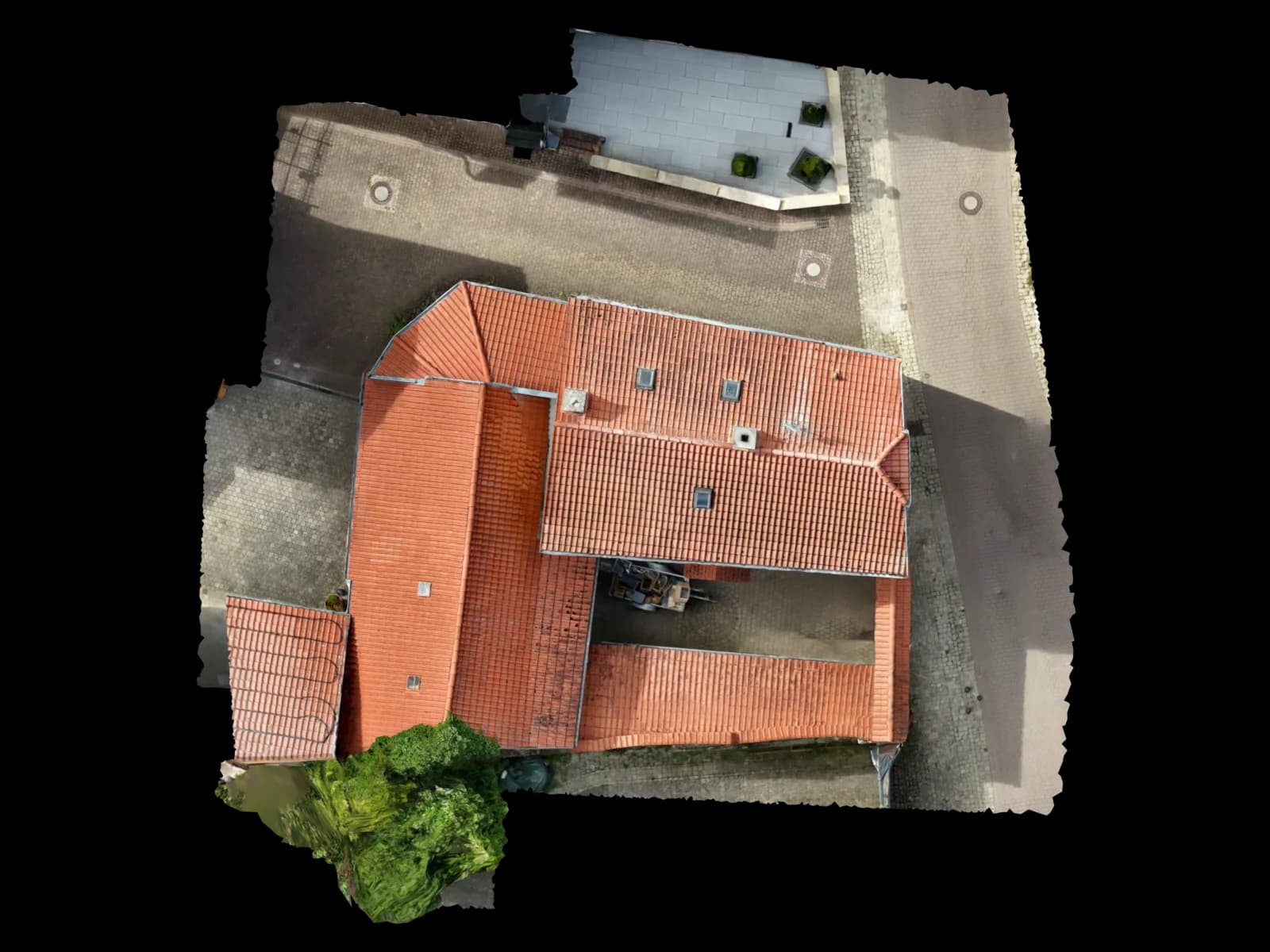
A regular image shows pixels. A GeoTIFF connects those pixels with spatial information. The OGC GeoTIFF standard defines a TIFF-based exchange format for georeferenced or geocoded imagery.
For Voxelia, this is a typical processing task: customers supply existing drone images, facade photos, or other image datasets. Depending on quality, these can become orthophotos, true orthophotos, orthoplanes, CAD traces, or 3D deliverables.
CRS, pixel size, tiepoints, and NoData must be clear
GDAL describes GeoTIFF georeferencing through tiepoint plus pixel size, transformation matrix, or GCPs. In practice, the file needs to know where the raster sits in space and how large each pixel is in reality.
The coordinate reference system is often the main risk. WGS84, ETRS89/UTM, local site coordinates, and Swiss LV95 are not interchangeable.
| System / dataset | Suitability | Best for | Practical note |
|---|---|---|---|
| CRS / EPSG code | location reference | GIS, site plans, georeferenced CAD bases | Clarify official, local, or software-specific coordinate needs before export. |
| Pixel size / GSD | level of detail | roof edges, facades, area checks, PV pre-planning | Small pixels do not compensate for blur or weak geometry. |
| Tiepoints or transform | raster placement | GeoTIFF import into QGIS, AutoCAD Map, Civil 3D, and Web GIS | The raster must be scaled, rotated, and positioned correctly. |
| NoData / mask | clean overlay | GIS layers, drawing output, CAD reference | Irregular orthophoto edges should not block other layers as black or white areas. |
GeoTIFF, world file, Cloud Optimized GeoTIFF, or PDF?
GeoTIFF is a robust standard format for georeferenced raster deliveries. GDAL broadly supports GeoTIFF and BigTIFF for very large files. If georeferencing is not inside the TIFF itself, GDAL can also use world files such as TFW, TIFW, or WLD.
For very large orthophotos or web viewers, Cloud Optimized GeoTIFF can be useful because clients can efficiently request parts of the raster over HTTP.
Import into CAD, GIS, and planning software
QGIS can use georeferenced rasters directly and includes a georeferencer that aligns rasters to known coordinates via GCPs. GIS workflows care about CRS, pixel size, NoData, overviews, and layer stacking.
CAD workflows differ. Large coordinates, heavy rasters, and ambiguous units often cause more friction than in GIS. A local working origin, reduced raster resolution, or vector trace can be the better delivery.
Typical errors in GeoTIFF orthophotos from supplied imagery
Many issues appear only at import. A file may look correct in one viewer but arrive shifted in CAD, use the wrong units, or lose its world-file reference during transfer.
Very high resolution can also be counterproductive. If the source images are blurry or edges are occluded, more pixels do not create more planning reliability.
| Risk scenario | Why it matters | Typical symptom | Countermeasure |
|---|---|---|---|
| Wrong or missing CRS | The raster uses the wrong spatial reference | Orthophoto appears far away, shifted, or mirrored | Clarify EPSG code, vertical reference, and local transform before export |
| World file separated from image | Georeferencing is stored in a companion file | TIFF opens as an ordinary image only | Prefer embedded GeoTIFF or bundle companion files deliberately |
| Raster too heavy for CAD | CAD tools are often less tolerant of huge rasters than GIS | Slow import, crashes, sluggish navigation | Crop, add overviews, compress, or provide CAD trace |
| NoData as black edge | Transparency or mask was not exported cleanly | Orthophoto covers other plan layers | Test NoData/alpha mask in the target application |
How Voxelia prepares orthophotos as GeoTIFF, CAD base, or GIS layer
The workflow starts with the target system. A QGIS layer, CAD roof survey background, PV planning image, and viewer tile do not need the same export.
If the supplied images support an orthophoto, the export is tailored to reuse. If needed, Voxelia also provides DXF/DWG edges, 3D models, viewers, or a quality note describing dataset limits.
Clarify target software and spatial reference
Define whether GIS, CAD, PV software, BIM reference, or viewer is the leading target.
Review imagery and references
Assess sharpness, overlap, GSD, EXIF/GNSS, GCPs, reference distances, and checkpoints.
Prepare raster and edges
Set pixel size, NoData mask, crop, compression, and delivery-specific raster output.
Deliver import-ready files
Provide GeoTIFF, cropped raster, DXF/DWG trace, 3D model, viewer, or a useful combination.